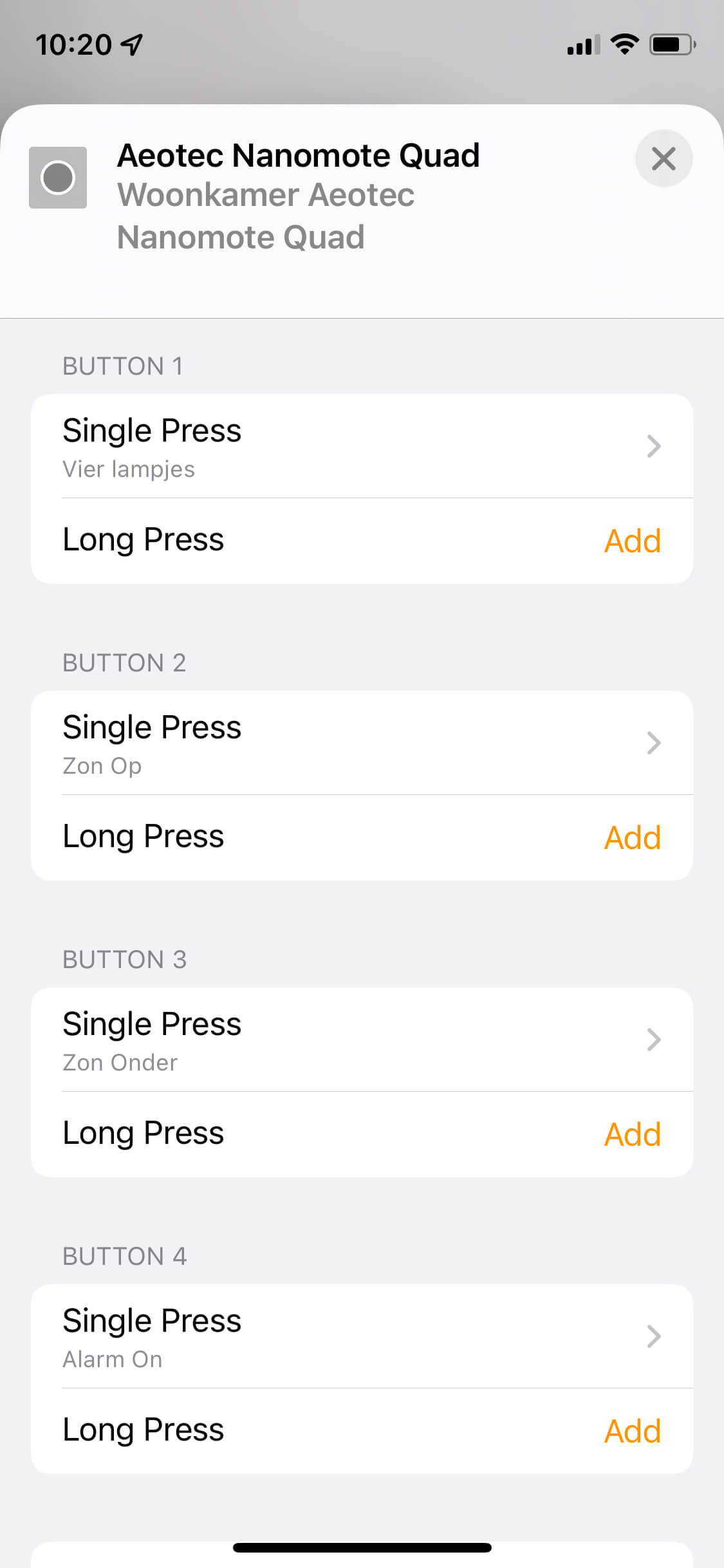
How do I configure push buttons and/or scenes?
Z-WaveHow to Configure Push Buttons and Scenes in HomeKit with Thinka
Unlock the full potential of your smart home by configuring Z-Wave push buttons and scenes with Thinka for HomeKit. With just a few simple steps, you can easily control your devices and automate your favorite scenes at the press of a button.
- Add Your Z-Wave Device: After connecting your Z-Wave push button to Thinka, navigate to the device’s detail page. Here, under the Information tab, you’ll find all supported scenes and events for your device.
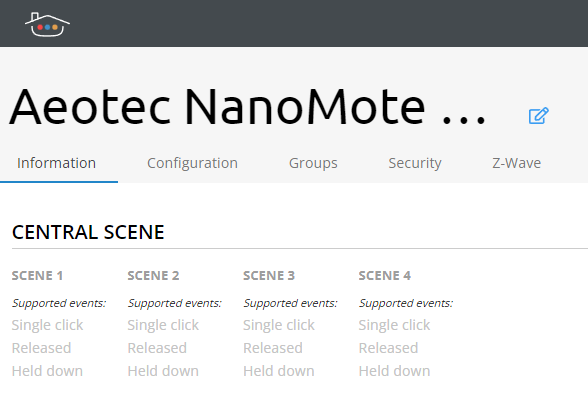
Tip: Each button (or scene) shows its supported events clearly, making it easy to customize your controls.
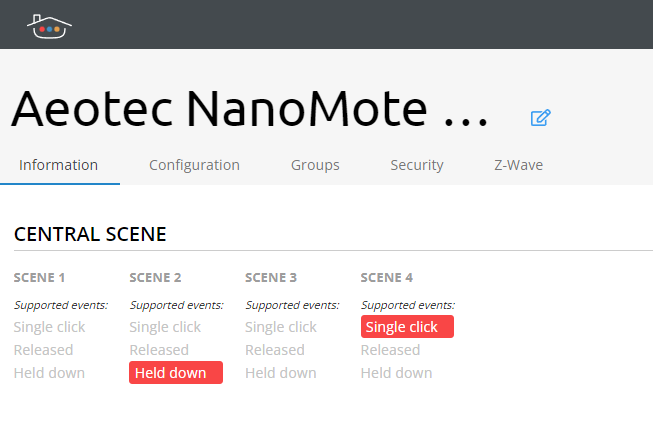
Simply press a button to see the triggered event highlighted on the web page.
- Using HomeKit Beta Channel: If you are on the beta channel, your device will also appear in HomeKit for even easier integration.
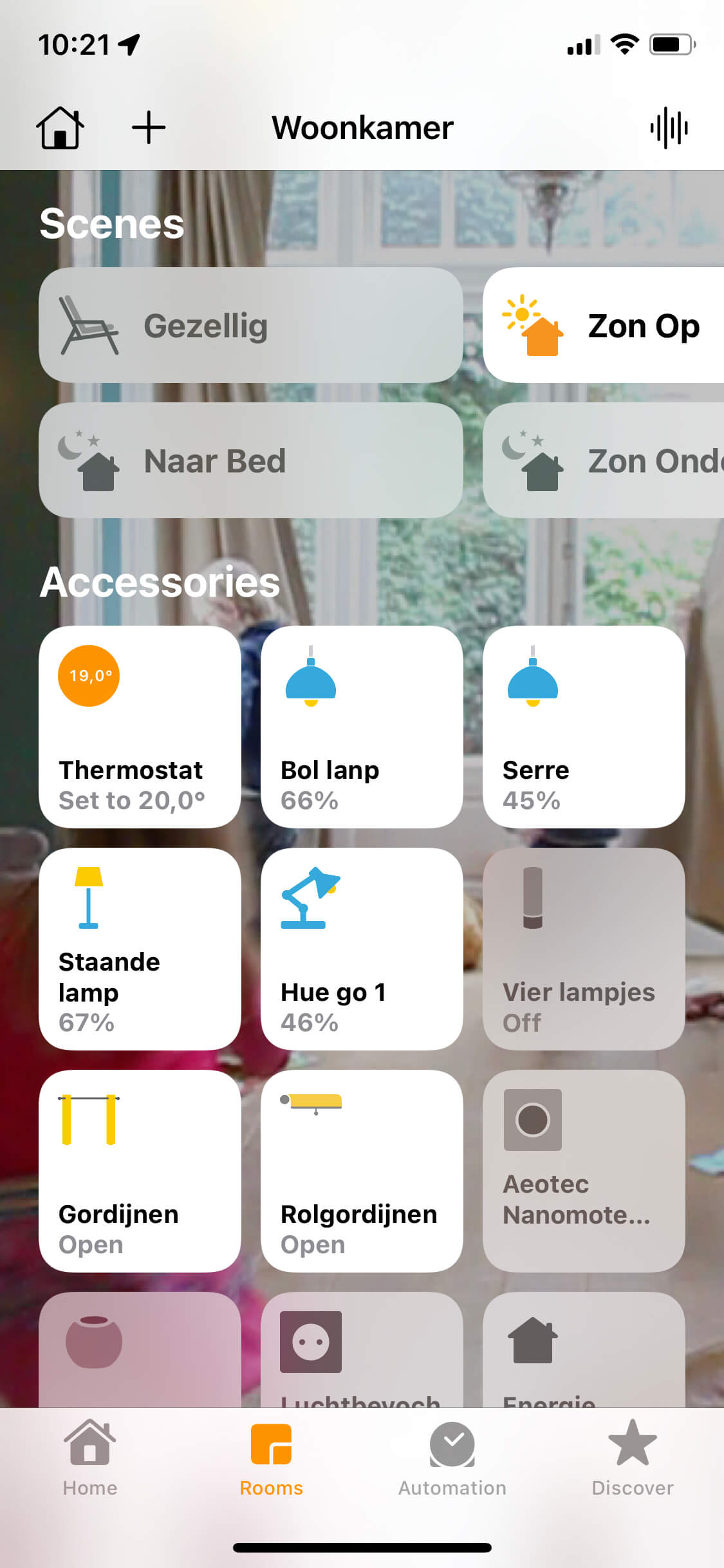
Explore more by clicking into the push button’s details to configure actions for each button, making your smart home uniquely yours!