How to configure HomeKit
Z-WaveSetting Up HomeKit with Your Thinka Device: A Step-by-Step Guide
How to Easily Configure HomeKit with Thinka
Ready to connect your Thinka to Apple HomeKit for seamless smart home control? Follow these simple steps to get started:
- Download the Thinka Companion App: Install the Thinka Companion app on your iOS device.
- Allow Local Network Access: When prompted, be sure to grant local network access for smooth device discovery and pairing.
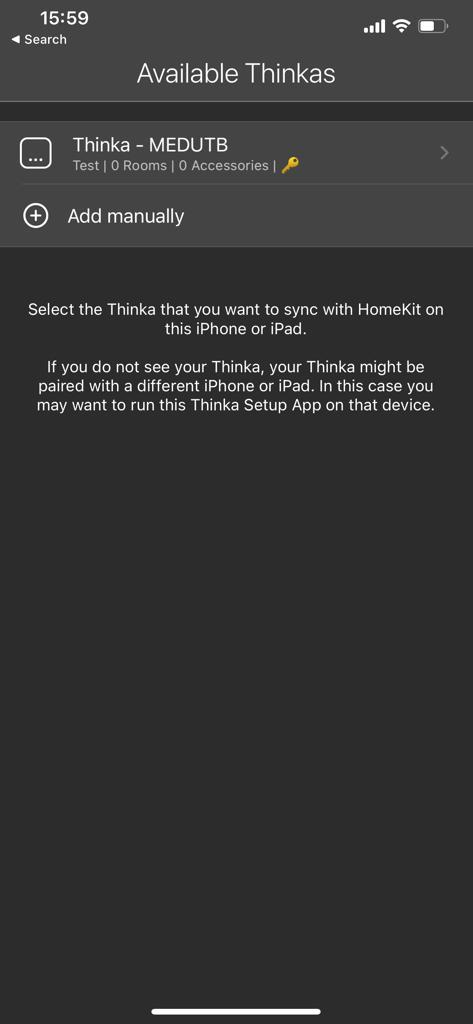
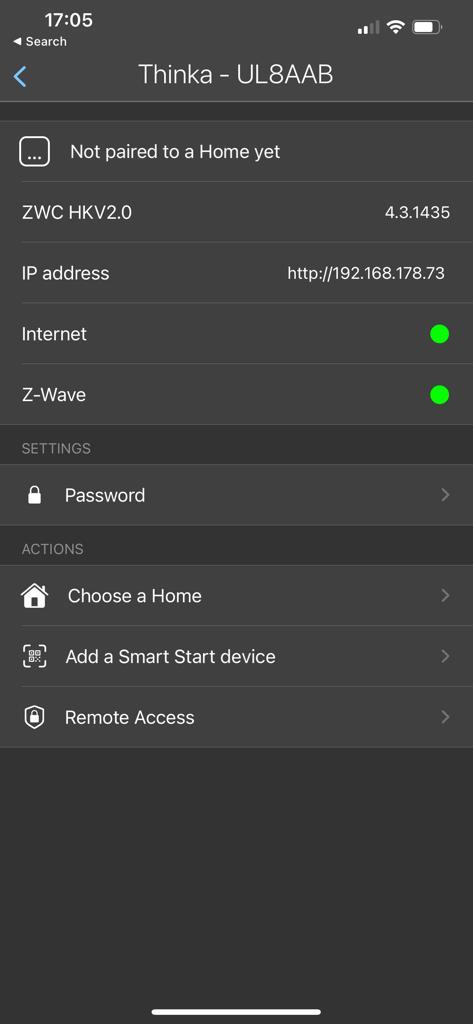
- Pair with HomeKit: Open the app to see available Thinka devices. Select your Thinka, then tap "Choose a Home" and pick your HomeKit home. Enter the PIN shown on your Thinka device.
- Set Name & Location: For your Thinka device to appear in HomeKit, ensure it has both a name and a location. You can set these during setup or via the Smart Start feature in the app.
Need help with other devices? Check our dedicated guide for Z-Wave Push Button configuration.