Thinka for KNX — FAQ
Is Your Thinka Not Working? Here’s What to Do
We understand how frustrating it can be if your Thinka device isn’t working properly. Don’t worry—before reaching out to support, try these simple troubleshooting steps to quickly resolve the issue:
- Check the LED Indicator:
Take a look at the LED(s) on your Thinka. Normally, the LED should be solid green. If you see a different color or if the LED is flashing, this could indicate a specific problem. Find out what each LED color means by visiting our LED color guide. - Access the Web Interface:
Try accessing the Thinka web interface. Need help? See our guide on finding your Thinka on your network. - Restart Your Thinka:
Sometimes a simple reboot can fix the problem. Learn how to restart your device here. - Network Connection Check:
Look at the small LEDs next to the network port; they should be green and orange. If they’re lit or flashing, your Thinka is connected to the network. You can also install the Thinka Companion app for further setup. - Find Your Device on Your Router:
Try locating your Thinka’s DHCP address through your router settings.
If these steps don’t solve the issue, note your Thinka’s serial number and contact our support team at support@thinka.eu. We’re here to help!
What Do I Need to Use Thinka in My Home?
Ready to experience smart home convenience with Thinka? Here’s what you’ll need for a smooth installation and setup:
- KNX Installation: An existing KNX system is required in your home for Thinka to function.
- Internet Connection: Make sure you have a free ethernet port and a mains socket available for Thinka.
- Project File (Optional): For configuration, an ETS4 or ETS5 project file can make setup even easier, but it’s not mandatory.
- Modern Browser: The setup process is seamless on up-to-date browsers—IE 11, Safari, and Chrome are fully supported.
- Device Compatibility: Configure Thinka quickly from your PC, Mac, or tablet.
Want to control your KNX smart home with your voice? Just use any of the following devices:
- iPhone
- iPad
- HomePod
- Amazon Echo
- Google Home devices
Get started with Thinka and bring effortless control to your KNX smart home today!
- DIN Rail Installation: Thinka is designed to be mounted easily onto the DIN rail inside your meter box, ensuring a secure and reliable setup.
- Professional Installation Recommended: For the best results, we recommend having a certified KNX system integrator handle the installation. Their expertise guarantees your Thinka will work flawlessly with your home automation system.
- Step-by-Step Video Guide: Want to see how it’s done? Visit our video channel for a detailed installation video that walks you through the entire process, making it easy to understand what to expect.
How Will I Know When My Thinka Arrives?
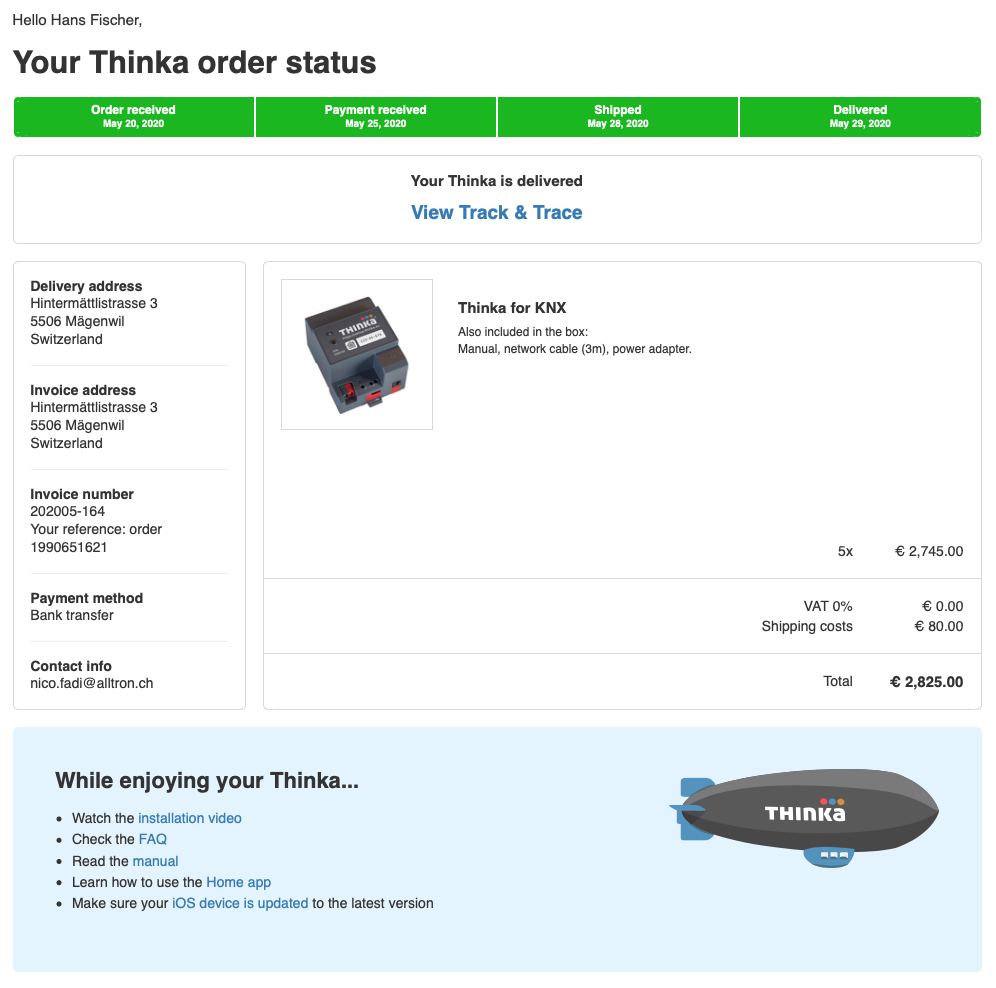
Thank you for your order! Once you’ve purchased your Thinka, staying updated on your delivery is quick and easy.
- Order Confirmation: You'll receive an email confirming your purchase right after you order.
- Shipping Notification: As soon as your Thinka is shipped, we'll send you a shipping confirmation email with a tracking number. This allows you to follow your Thinka’s journey from our warehouse to your doorstep.
- Track Your Order: Click the tracking link in your email at any time to see real-time updates on your delivery status.
If you have any questions or need further assistance regarding your Thinka delivery, our friendly support team is here to help. Enjoy a seamless shopping experience and look forward to your new Thinka arriving soon!
How to Enable Local Network Access for Thinka and HomeKit
To successfully pair your Thinka device with Apple HomeKit, you’ll need to make sure Local Network access is enabled on your iOS device. Here’s a simple step-by-step guide:
- Download the Thinka Companion app: Install the Thinka Companion app directly to your iPhone or iPad.
- Grant Local Network access: When you first open the app on iOS 14 or later, you’ll see a prompt: “Thinka would like to find and connect to devices on your local network.” Tap “OK” to allow access.
- Verify permissions: Go to your device’s Settings app to confirm that the Thinka Companion app has Local Network access enabled.
Enabling Local Network access is essential, as HomeKit pairing only works through your local network. Follow the images below for a visual guide:
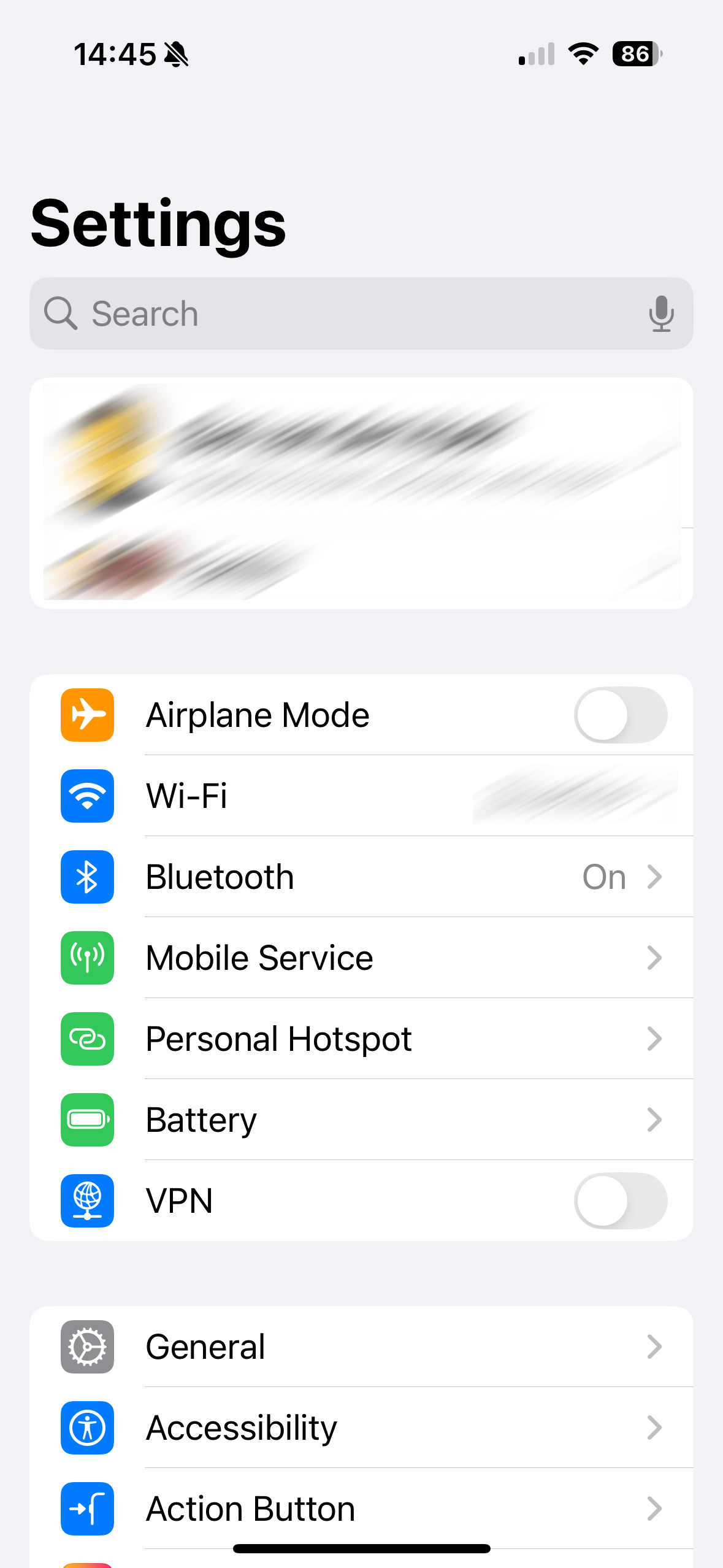
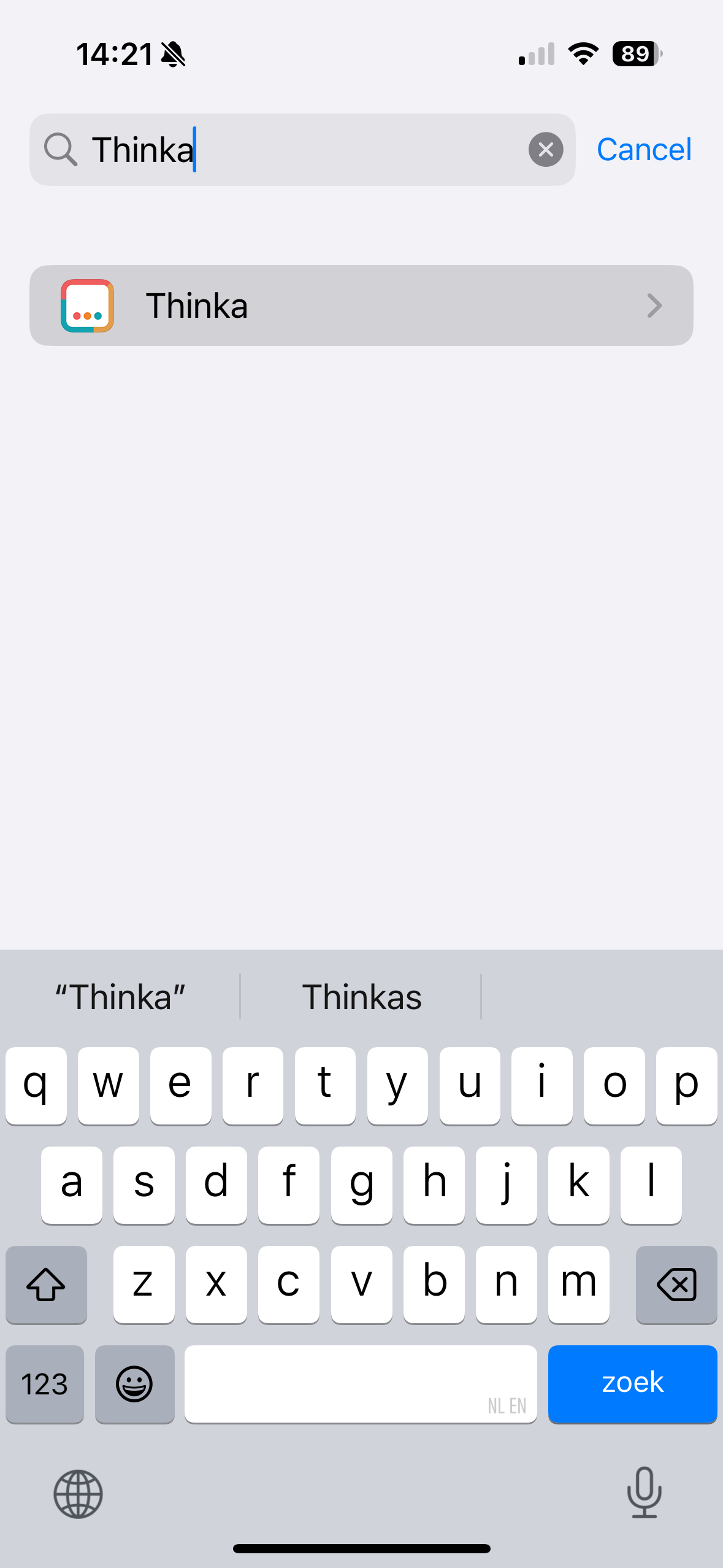
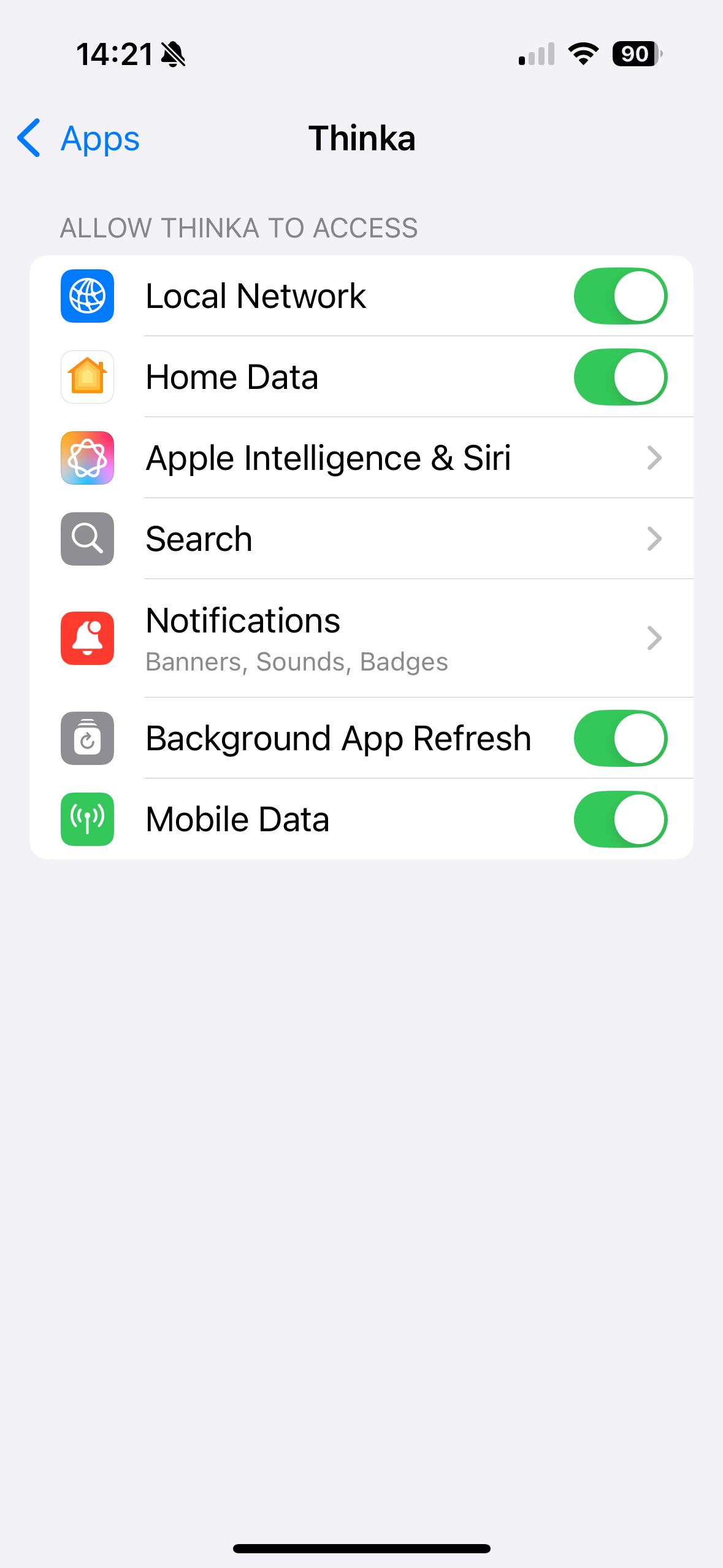
Enjoy seamless smart home integration with Thinka and HomeKit!
How Do I Log In to My Thinka?
Logging in to your Thinka is fast and easy! Just follow these simple steps:
- Open your preferred web browser and visit https://setup.thinka.eu.
- Enter the serial number of your Thinka device.
- You will be automatically redirected to your Thinka’s web interface on your local network.
- If your Thinka is password-protected, simply enter your password when prompted.
- Once logged in, you’ll be taken straight to the Settings page, where you can easily manage all your Thinka features and settings.
Pro Tip: For quick access in the future, bookmark your Thinka’s web interface so you can go directly to it without revisiting the setup.thinka.eu site.
Enjoy seamless control and management of your Thinka smart home hub—right from your browser!
How Can I Prepare for My Thinka Installation?
Congratulations on ordering your Thinka! To ensure a smooth and hassle-free installation, we recommend taking a few simple steps to get ready:
- Watch Our Installation Video: Get a head start by watching our comprehensive installation guide. This video walks you through each step, making setup easy—even if you’re not a tech expert.
- Review Installation Requirements: Make sure you have all the necessary tools and compatible devices on hand for the installation process.
- Prepare Your Smart Home Network: Check your home Wi-Fi connection and location where you'll install Thinka for optimal performance.
- Read the User Manual: Familiarize yourself with the Thinka user manual to answer any questions before you begin.
By following these tips and watching our installation video, you’ll be ready to enjoy the full benefits of your Thinka smart home integration in no time!
Can the Thinka be Connected via Twisted Pair or an IP Gateway?
Yes, Thinka supports both connection options! Whether you prefer a traditional Twisted Pair (TP) setup or want the flexibility of an IP Gateway, Thinka has you covered.
- Twisted Pair (TP) Connection: Easily connect Thinka directly to the KNX bus using TP, as demonstrated in our helpful video guide.
- IP Gateway Configuration: Prefer a network-based solution? You can seamlessly configure an IP Gateway during Thinka’s setup process for a fast and flexible installation.
This versatility makes Thinka the ideal choice for any KNX smart home integration, ensuring compatibility with your preferred wiring or network infrastructure. Enjoy effortless setup and reliable performance—no matter which connection method you choose!
Can the KNX Bus Power a Thinka?
Not all Thinka devices can be powered directly by the KNX bus. While newer Thinka models may support bus power, older versions such as the HKV1.2 and earlier cannot be powered this way. The KNX bus supplies approximately 320mA at 30V—less than 10 Watts—which is insufficient to reliably power both your KNX system and a Thinka device.
- Using the KNX bus to power incompatible Thinka versions can cause your KNX installation to become unresponsive due to inadequate power supply.
- To ensure stable operation, always use a dedicated KNX power supply or the official Thinka power supply provided with your device.
- This guarantees optimal performance and protects your smart home system from unexpected shutdowns or malfunctions.
For detailed instructions on safely powering your Thinka, please visit our guide: Powering the Thinka KNX.
Discover Our New User Interface
We’re excited to introduce our brand-new user interface, designed for a smoother, more intuitive experience! While most of the core features and functionality remain familiar, you’ll notice a modern look and improved navigation to make your workflow even easier.
- Streamlined Design: Enjoy a fresh, user-friendly layout crafted for effortless browsing.
- Enhanced Performance: Experience faster load times and seamless transitions between features.
- Easy Transition: All the essential tools you know and love are still here—just better!
We’re currently updating our FAQs to cover everything you need to know about the new interface. In the meantime, if you have any questions or need assistance, our support team is here to help! Simply email us at support@thinka.eu and we’ll get back to you promptly.
Stay tuned for more updates, and thank you for choosing us as your trusted platform!
Showing the first 10 FAQs. Use the subject filters or search to find more.